8 Time-Saving Tips for Professional Coloring Book Design
8 Time-Saving Tips for Professional Coloring Book Design
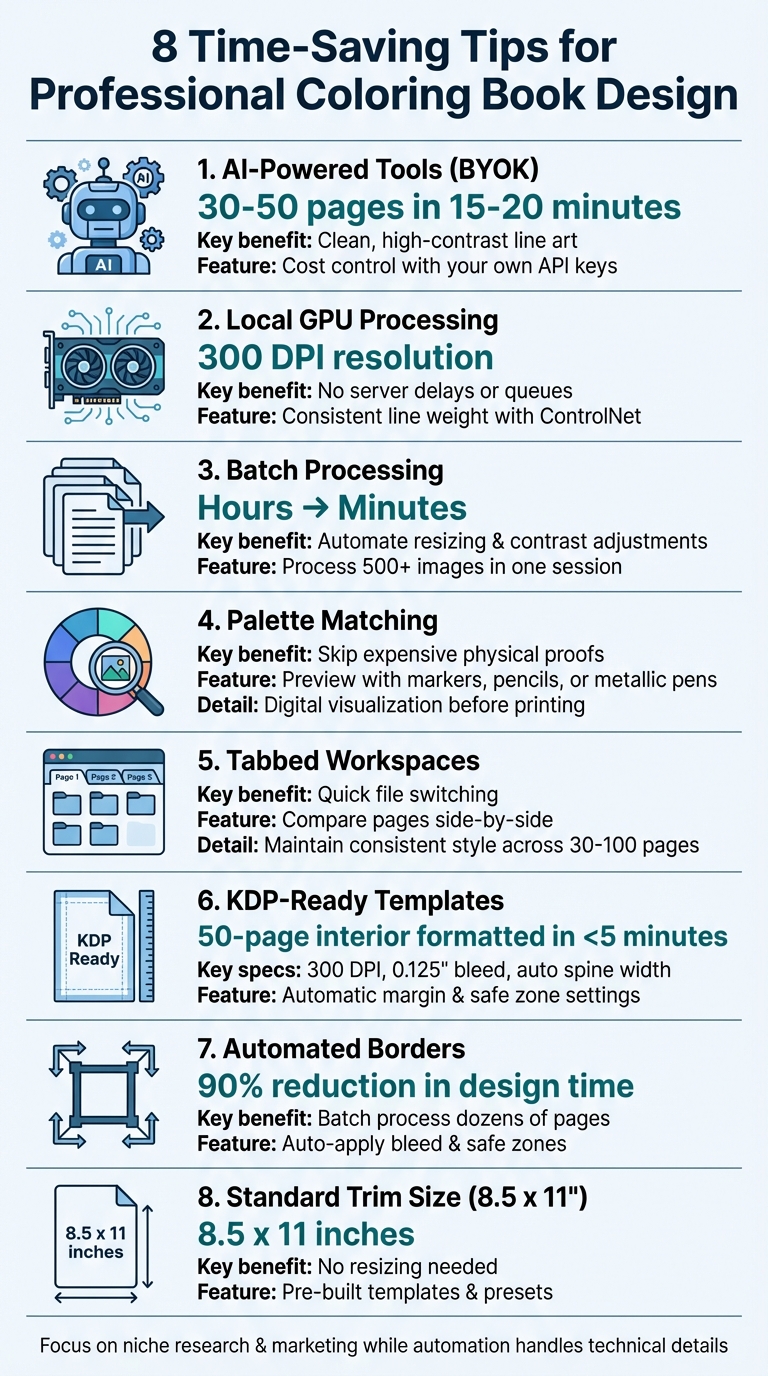
Creating professional coloring books for platforms like Amazon KDP can be a tedious process, but modern tools make it faster and easier. By leveraging AI vs traditional coloring book creation methods, GPU-based tools, and optimized workflows, you can cut production time from weeks to minutes while meeting KDP’s strict requirements. Here’s a quick breakdown of the key tips:
- AI-Powered Tools: Use BYOK AI engines to generate 30–50 pages in 15–20 minutes with clean, high-contrast line art.
- Local GPU Processing: Avoid server delays and create consistent, high-resolution designs with tools like Stable Diffusion.
- Batch Processing: Automate repetitive tasks like resizing and contrast adjustments to save hours of work.
- Palette Matching: Preview designs digitally to fine-tune layouts for markers or pencils without physical proofs.
- Tabbed Workspaces: Organize files efficiently to maintain consistency across your project.
- KDP-Ready Templates: Skip formatting headaches by using pre-made templates with proper margins, bleed, and resolution.
- Automated Borders: Quickly format full-bleed images with tools that handle technical details for you.
- Standard Trim Sizes: Stick to 8.5 x 11 inches to avoid resizing issues and ensure compatibility with KDP.
These methods not only save time but also help you focus on important tasks like niche research and marketing. Whether you're a beginner or experienced, these strategies make it easier to produce high-quality coloring books that meet KDP’s standards and attract buyers.
8 Time-Saving Tips for Professional Coloring Book Design
1. Use Coloring Book Engine for BYOK AI Integration
Time-Saving Potential
The Bring Your Own Key (BYOK) model is a game-changer for creating professional coloring books quickly. Instead of spending weeks on manual sketching and scanning, you can now generate 30 to 50 themed coloring pages in just 15 to 20 minutes. The AI engine delivers clean, high-contrast line art on a pure white background, so there's no need for tedious pixel-level fixes. Plus, by using your own API keys, you stay in control of your costs, avoid unpredictable subscription fees, and keep your creative data secure. This fast and efficient process ensures your output is fully aligned with KDP's publishing standards.
Compatibility with KDP Standards
BYOK AI integration takes care of meeting KDP's technical requirements, including 300 DPI resolution and 0.125-inch bleed specifications.
KDP publisher Mark S. shared, "The print-ready PDF export is flawless - no more worries about bleed settings or margins."
The system also automates formatting for trim sizes, margins, and gutter settings, ensuring everything is ready for KDP without the need for manual adjustments. This frees you up to focus on creative decisions rather than technical details.
Workflow Optimization
Beyond saving time, the integration supports batch processing, allowing you to input up to 50 prompts at once. This ensures a consistent style across your designs while eliminating repetitive tasks.
As Billie Lucas puts it, "AI to create coloring books isn't about replacing artists - it's about scaling repetitive work like producing line-art pages and testing dozens of variations quickly".
sbb-itb-c02bfb4
2. Enable GPU-Based Local Image Generation
Time-Saving Potential
Pairing GPU-based image generation with BYOK integration can save you a ton of time. Unlike cloud-based tools, which often involve frustrating wait times and server queues, a local setup using Stable Diffusion allows you to work at your own pace. For example, you can create up to 50 professional coloring pages in just 15 to 20 minutes. Plus, there are no extra fees for generating unlimited iterations. With local processing, you can also use tools like ControlNet to maintain consistent line weight and style across an entire book, whether it’s 24 pages or 100 pages. This setup is ideal for hitting the quality benchmarks required for KDP publishing.
Relevance to Professional Coloring Book Design
When it comes to professional coloring books, resolution matters. GPU-based generation produces high-resolution images at 300 DPI, meeting KDP's strict standards for print-ready files. In contrast, cloud AI tools often output lower-resolution images that require additional upscaling. With a local setup, you can fine-tune your settings to ensure an 8.5 x 11-inch aspect ratio at 300 DPI, perfect for professional printing. Another bonus? Local generation avoids the issue of "inconsistent tones" that’s common with general-purpose cloud AIs. By using models specifically designed for line art, you can achieve clean, high-contrast black-and-white designs that are ready for printing without extra touch-ups.
Workflow Optimization
Local GPU generation doesn’t just boost quality - it also streamlines your workflow. By leveraging batch processing, you can cut what might take weeks of work down to just a weekend. For instance, if you prepare 30 to 50 themed prompts in advance, you can generate an entire set of pages in one session while maintaining visual consistency throughout the book. This efficiency frees up your time for other critical aspects of your project, such as researching your niche, designing an eye-catching cover, or planning your marketing strategy.
"AI speeds up bulk page generation, but crisp, consistent line art and careful layout planning make printable books sellable." - Billie Lucas, Author, BookAutoAI
Another major advantage of local GPU generation is the control it offers. By keeping everything on your machine, you maintain full ownership of your creative data and avoid any external usage restrictions.
3. Process Multiple Pages at Once with Batch Processing
Time-Saving Potential
Batch processing takes the tediousness out of repetitive tasks, turning hours of manual work into a quick, automated process. Instead of adjusting each page individually, you can handle tasks like resizing, tweaking contrast, and sharpening lines across hundreds of images in one go. For instance, imagine working on a 50-page coloring book where every image needs resizing. With batch processing, what could take an entire afternoon manually is done in just minutes.
Adobe highlights this efficiency by explaining that resizing and color-correcting 500 images manually within a tight two-hour deadline is nearly impossible - but batch processing makes it manageable and ensures consistency across all edits. This method not only saves time but also guarantees a polished, uniform look.
Relevance to Professional Coloring Book Design
Consistency is key in professional coloring books, where every page must maintain the same visual style. Batch processing helps achieve this by standardizing elements like stroke weights, contrast levels, and overall design. It also minimizes the chance of human error, ensuring a polished final product.
"Using Adobe's batch editing capability, you only need to color correct and resize one image. Photoshop remembers the edits you made to the original image and applies the same edits to the remaining images, saving you valuable time and ensuring you meet your deadline." - Adobe
Compatibility with KDP Standards
Amazon's Kindle Direct Publishing (KDP) platform has strict requirements, such as 300 DPI resolution, an 8.5 x 11-inch trim size, and a 0.125-inch bleed. Batch processing simplifies this by automatically applying these specifications to every page. This eliminates the risk of inconsistencies that could result in rejections during the printing process. With these standards handled, you can focus on refining your creative work instead of worrying about technical errors.
Workflow Optimization
To make the most of batch processing, organize your workflow efficiently. Start by sorting your images into "Source" and "Destination" folders. In Photoshop or similar software, record your editing steps as an "Action" - such as increasing contrast, resizing, or sharpening lines. Then, apply this action to your entire folder. Enable the "Override Action Save As Commands" option to save each file with a systematic naming format, like BookTitle_001.png. This method keeps your files organized and your process streamlined.
4. Create Accurate Previews with Palette Matching
Time-Saving Potential
Using palette matching, you can preview how your coloring book will look when filled with markers, colored pencils, or metallic pens. This feature helps you skip the guesswork and avoid spending money on expensive physical proofs. As designer Liz Kohler Brown puts it:
"Understanding the materials helps you make better choices about your design and the spaces that you create for your customers to fill!"
By visualizing where bold colors will appear in your design, you can adjust line spacing and negative space digitally. This quick digital check allows you to spot and fix issues in minutes, avoiding surprises during printing. It’s a simple way to align your creative vision with KDP’s production requirements without wasting time or resources.
Relevance to Professional Coloring Book Design
Palette matching is a go-to tool for professional designers to ensure their line art complements popular coloring materials. For example, alcohol markers work best with designs that feature bold and vibrant areas, while colored pencils shine in open spaces that allow for gradients and shading. Metallic pens? They’re ideal for small, intricate shapes that highlight their shimmer.
Accurate previews also let you create partially colored images for book covers or promotional materials. These previews give potential buyers a clear idea of what the finished pages could look like, setting realistic expectations and building trust. This approach not only fine-tunes your artwork but also speeds up the approval process on KDP.
Compatibility with KDP Standards
Palette matching ensures your 300 DPI designs meet KDP’s clarity and sharpness requirements. You can confirm that dark, bold lines will print crisply and that your designs maintain high contrast. Additionally, it helps you verify that your margins - ranging from 0.5 to 0.75 inches - and the 0.25-inch safe zones keep all critical details away from the binding, preventing accidental trimming.
Workflow Optimization
Before finalizing your PDF, always review your preview at 100% scale to catch any resolution issues early. Test line weights between 0.5pt and 2pt to create depth and ensure clear distinction between elements. Also, remember to design for KDP’s single-sided layout, which minimizes bleed-through when users work with heavy markers or inks. Self-publishing expert Murray Campbell highlights the importance of this step:
"By producing a test copy, you can evaluate colors, layout, and overall presentation before mass production"
This process streamlines your workflow and ensures your coloring book is ready for production, meeting both your creative goals and KDP’s standards.
5. Manage Projects with Tabbed Workspaces
Time-Saving Potential
Tabbed workspaces are a game-changer when you're juggling multiple aspects of a professional coloring book. Imagine quickly switching between your cover design, interior pages, and reference art - all without the hassle of opening and closing files. If you're working on a coloring book with 30–50 unique designs, this feature slashes the time spent on file management, letting you focus on what matters: the art itself. Plus, you can compare pages side-by-side in seconds, ensuring consistent line weights and a unified visual style.
For high-volume projects, tabbed workspaces shine even brighter. You can dedicate tabs to different phases of the process - one for bulk-generating designs (up to 50 pages at once) and another for refining previously created art. This setup keeps everything flowing smoothly, preventing bottlenecks and maintaining your creative momentum.
Relevance to Professional Coloring Book Design
Speed is important, but consistency is where tabbed workspaces truly make an impact. Professional coloring books demand a uniform look across all pages, and with tabs, you can keep a master style guide open while working on new designs in another tab. This approach ensures that details like line weights remain consistent throughout the book.
Tabbed environments also help you stay organized. Divide your project into logical sections - like front matter (title and copyright pages), the main content (30–100 coloring pages), and back matter - all in a single session. This structure keeps everything in one place, reducing the chances of errors.
Compatibility with KDP Standards
When it comes to meeting KDP's technical requirements, tabbed workspaces are incredibly helpful. Keep a master template tab open with pre-set margins (0.5 inches outer, 0.75 inches binding) and safe zones (0.25 inches) as a constant reference. This makes it easy to ensure every page meets the 300 DPI resolution standard and includes the required 0.125-inch bleed for professional printing.
Since covers and interiors often have different specifications - covers need CMYK color space and precise spine calculations, while interiors are usually grayscale - tabs let you manage these differences without mixing up files. You can even use a preview tab at 100% zoom to catch issues like stray pixels or interrupted lines. This streamlined approach keeps your design process efficient and aligned with KDP's expectations.
Workflow Optimization
Tabbed workspaces also make it easier to organize your book into sections. Keep your "front matter" and "back matter" in separate tabs from your main coloring pages to avoid formatting mistakes. This is especially useful for adhering to KDP rules, such as leaving blank backs on single-sided pages to prevent marker bleed-through.
For larger books - up to 100 pages - consider grouping content into themed sections, like "forest creatures" or "ocean animals." This eliminates the need for constant file switching and keeps your workflow streamlined.
Lastly, reserve a tab for negative prompts or style keywords to maintain a consistent look across all 50+ pages of your book. This simple step ensures every page aligns with your design vision and meets professional standards for KDP-approved coloring books.
6. Use KDP-Ready Templates and Bleed Settings
Save Time with Pre-Made Templates
Figuring out margins, bleeds, and spine widths manually can eat up a lot of time. That’s where KDP-ready templates come in handy - they take the guesswork out of the process by automatically applying the correct bleed and safe zone settings. This not only simplifies your workflow but also reduces the chances of your files being rejected during KDP’s review.
For those managing multiple projects, the time saved adds up fast. AI-powered templates can format an entire 50-page interior in under five minutes, automatically applying the right settings to every page. One KDP publisher, Mark S., shared his experience:
"The print-ready PDF export is flawless. I used to worry about bleed settings, margins, but now I just generate and upload."
By automating these settings, you can focus on creating instead of troubleshooting formatting issues.
Built for KDP Standards
KDP-ready templates are designed to meet all the platform's specifications, including the 8.5 x 11-inch trim size, 300 DPI resolution, and the 0.125-inch bleed needed for print-ready files. The bleed is especially important for artwork that extends to the edge of the page, ensuring there are no unwanted white borders after trimming.
Cover templates are another time-saver - they automatically adjust for spine width based on the book’s page count and paper type. This is crucial because spine dimensions vary with paper thickness, and you’ll need at least 79 pages to include spine text.
Streamlining Your Workflow
Beyond meeting technical requirements, these templates make your workflow smoother and more efficient. Starting with the right template eliminates the need for tedious rework. For example, if you’re creating a single-sided coloring book (where designs appear only on right-hand pages to prevent marker bleed-through), templates handle the layout for you automatically.
Templates also take care of small but important details like the gutter margin - the space near the binding. KDP requires at least 0.5 inches for the gutter to ensure artwork doesn’t get lost in the spine. Additionally, they maintain a safe zone by keeping critical content 0.25 inches away from the trim edges, accounting for possible production variances. And don’t forget to flatten all layers in your final PDF to avoid any distortions during printing.
7. Automate Borders and Sizing for Full-Bleed Images
Time-Saving Potential
Refining borders and image sizing through automation can dramatically speed up your workflow. Tasks like manually placing borders or resizing images often consume hours, especially for multi-page projects. But with modern tools, these time-draining processes become a thing of the past. For example, some tools can generate a complete 50-page coloring book interior in under 5 minutes, eliminating the need for manual resizing or quality adjustments before uploading to KDP. Compare that to the traditional approach, where each page demanded hands-on attention - it’s a game-changer.
One publisher noted an astounding 90% reduction in design time.
These tools allow you to process dozens of pages simultaneously, freeing up your time to focus on creative decisions instead of repetitive technical tweaks. Beyond saving time, automation ensures every image meets KDP's exacting standards, reducing the likelihood of errors.
Compatibility with KDP Standards
One of the biggest advantages of automated tools is their ability to pre-apply KDP's required bleed and safe zone dimensions. Mistakes in these measurements can lead to rejections during the KDP review process, delaying your project's release.
Automation also ensures your files are export-ready, producing print-quality PDFs at 300 DPI resolution that match the final trim size. This guarantees sharp, professional-looking line art. For full-bleed images that extend to the page edges, the tools automatically add the necessary bleed area - no manual calculations required. By handling these technical details for you, automation makes the entire assembly process smoother and error-free.
Workflow Optimization
Creating templates for standard trim sizes, such as 8.5 x 11 inches, can further streamline your workflow. Once you configure the bleed, margins, and image placement, batch processing takes over, generating and formatting dozens of pages in one go.
Billie Lucas, a seasoned author specializing in printable books, highlights the balance between automation and quality:
"AI speeds up bulk page generation, but crisp, consistent line art and careful layout planning make printable books sellable."
8. Choose Standard Trim Sizes like 8.5 x 11 Inches
Why This Size Saves Time
Using a standard trim size like 8.5 x 11 inches can simplify your entire design process. This size eliminates the need to constantly resize artwork, adjust illustrations that might get cut off, or deal with rejections during Amazon KDP uploads. It's considered the "gold standard" for adult and children's coloring books, and most design tools already have presets tailored for this size.
These built-in presets handle technical details like DPI, margins, and bleed automatically, which means you can generate print-ready PDFs without extra steps. Just select the 8.5 x 11 preset, and let the software take care of the rest.
Perfect for Professional Coloring Books
The 8.5 x 11 size offers plenty of space for detailed, intricate illustrations - key for creating high-quality line art. This larger canvas allows colorists to enjoy a more comfortable experience, which can boost customer satisfaction. If you're using AI image generators, specifying an 8.5:11 aspect ratio ensures the artwork fits perfectly on the page without any stretching or cropping.
Another advantage? This size matches the US Letter format, making it printer-friendly for customers who prefer digital printables. Whether you're publishing physical coloring books through KDP or offering downloadable pages, this compatibility adds extra convenience.
Aligned with KDP Standards
Amazon KDP only supports specific trim sizes, and 8.5 x 11 inches is fully approved. Using non-standard sizes like A4 could lead to file rejections. For designs that extend to the page edges (full-bleed), the required dimensions are 8.625 x 11.25 inches, which include a 0.125-inch bleed on all sides.
KDP also requires a resolution of at least 300 DPI for professional print quality. Templates for this standard size are already optimized for these specifications. To avoid issues during binding, keep all essential content at least 0.5 inches away from the trim edge. This approach ties into earlier tips about maintaining consistency throughout your workflow, from design to print.
Streamlining Your Workflow
Starting with an 8.5 x 11-inch canvas in portrait orientation ensures consistency across all your pages. This standardization simplifies batch processing and avoids dimension mismatches that could slow you down.
Before finalizing your book, always order a printed proof from KDP. This step helps you spot any issues with line quality, margins, or overall presentation early on. A quick proof check can save you time and ensure your final product looks polished and professional.
NEW AI Tool Easily Creates KDP Coloring Books You Can Sell On Amazon
Conclusion
The techniques outlined in this guide can transform how you approach coloring book production. By blending AI tools with batch processing and GPU optimization, you can cut down on repetitive tasks and redirect your energy toward areas like niche research, marketing, and publishing strategies. This combination of automation and precision allows you to maintain full creative control while significantly reducing the time spent on manual illustration work.
However, speed isn’t the only factor that determines success. High-quality line art and thoughtful layout planning are essential for creating printable books that sell. The methods discussed here simplify your design process while ensuring your final product is polished and professional.
Consistency is another key to success. Keeping uniform stroke widths, using palette matching for previews, and organizing your projects with tools like tabbed workspaces all contribute to a cohesive and visually appealing book. These small but impactful steps can help your work stand out in a competitive market.
Now it’s time to put these ideas into action. Start small - try bulk generation on a limited batch or switch to the standard 8.5 x 11-inch trim size to streamline your workflow. As you gain confidence, you can incorporate more advanced techniques, like vectorization for sharper images or automated borders for full-bleed designs. The goal isn’t immediate perfection but rather building a system to produce high-quality books efficiently.
Don’t forget to order a KDP physical proof before launching your book. This step helps you catch potential issues like line weight inconsistencies, margin errors, or paper opacity problems that might not be obvious on screen. With these strategies in place, you’ll spend less time troubleshooting and more time creating coloring books that resonate with your audience.
FAQs
How can AI tools make designing coloring books faster and easier?
AI tools can make creating professional-quality coloring books much faster by taking over tasks that typically eat up a lot of time. For instance, AI art generators can turn simple text prompts into intricate illustrations, while vectorization tools instantly convert those images into crisp, scalable line art - no manual tracing required. Plus, AI can tackle things like removing backgrounds or tweaking contrast, leaving you with polished designs that are ready to go without hours of editing.
Another big advantage? AI can generate multiple pages with consistent styles and line weights in one go, making it simple to create a unified look for your entire book. By cutting down on repetitive tasks, these tools let you spend more time on the fun parts - like brainstorming themes and understanding your audience - instead of getting bogged down in endless manual adjustments.
How does using a local GPU improve the design process for coloring book creators?
Using a local GPU can dramatically accelerate your workflow by managing thousands of computations simultaneously - tasks that would otherwise bog down a CPU. This means processes like AI-generated line art, raster-to-vector conversions, or batch rendering can be completed in just seconds, saving you time and helping you hit those tight deadlines.
What sets GPUs apart is their dedicated memory and specialized cores, tailor-made for tasks like image generation and upscaling. Keeping everything on your local machine eliminates delays caused by network latency, ensures consistent quality, and lets you handle high-resolution designs without performance hiccups. The result? A streamlined, faster, and more reliable workflow.
Why should I use KDP-ready templates and standard trim sizes for my coloring book?
Using KDP-ready templates and standard trim sizes is a smart way to ensure your coloring book aligns with Amazon's printing requirements. These templates help you get the right bleed, margins, and dimensions, minimizing the chances of formatting errors or upload issues.
By following these guidelines, you can save yourself the hassle of multiple revisions and avoid unnecessary mistakes. Plus, it ensures your book prints just the way you envisioned it, delivering a polished, professional product that's ready to hit the shelves.