Replace a Coloring Book Page Without Mixing Up Revisions
To replace a coloring book page without shifting the rest of the book, swap the artwork in its existing slot and export a new copy of the interior. Check the new illustration at that position and inspect the pages immediately before and after it.
This guide gives KDP coloring book publishers a practical revision handoff: one page record, a limited change, and a fresh check of the exported book. It is an editorial workflow, not an Amazon requirement or a report of a completed CBE test.

AI-generated conceptual illustration. Different candidates illustrate revision selection, not a tested before-and-after edit.
Separate the artwork ID from its position in the PDF
A drawing's identity and its location are different things. Your twelfth illustration might not be PDF page twelve because the interior also contains introductory pages or blank backs. Printed page numbers can differ from both.
Give the illustration a stable ID, such as garden-012. Then record its current PDF page position separately. If you reorder the book, update the position without renaming the illustration's identity. This gives an editor a precise way to request a correction without guessing which thumbnail you mean.
Keep the original artwork and the exported PDF that exposed the problem. Do not overwrite either with the replacement. They are your comparison material, not evidence that the old version should remain in the book.
Write the defect before changing the prompt
Describe what fails at the intended printed size. “Make this better” leaves too much room for an unrelated redesign. “The three small leaf spaces close up at final size” identifies something a reviewer can inspect.
Use a compact record:
| Field | What to record |
|---|---|
| Artwork ID | Stable identity, independent of page order |
| Current revision | Exact source filename or revision label |
| PDF position | Position in the specific export under review |
| Observed defect | What the reviewer actually sees |
| Requested change | The smallest correction that addresses it |
| Preserve | Composition, subject, style, and other approved choices |
| Review state | Needs revision, ready for inspection, or approved |
For example, a hypothetical garden-012 note could request wider spaces between three leaves while preserving the flower arrangement and border. That example is not a tested page or a promise that one edit will solve the problem.
If you have not decided whether the line art itself is usable, start with our final-size line-art quality test. This handoff begins after you have identified a specific defect.
Choose repair or replacement deliberately
A local correction makes sense when the page already fits the book and the problem is isolated. A replacement makes sense when fixing one area would leave a confusing subject, inconsistent style, or unsuitable difficulty elsewhere.
Before regenerating a whole page, ask what you would lose. A new image can solve the original problem while introducing different proportions, extra objects, or denser backgrounds. It needs a fresh review rather than inheriting the old page's approval.
Save the new candidate under a new revision label. Keep rejected candidates distinct from the approved source. Your production folder should make the next selection obvious, but a filename containing “approved” is still only a label until someone checks the actual file.
Replace the page without silently changing the book
Before assembly, compare the replacement with an approved neighboring illustration. Look at line weight, visual density, border treatment, and the intended reader's difficulty level. A technically clean page can still look as though it belongs in a different book.
Record whether the change affects placement, dimensions, bleed treatment, or page count. Replacing artwork in an existing slot is different from inserting another PDF page. An insertion can shift later pages and change which illustration faces which blank back.
If you still have the editable book project, replace the artwork there first so the next export includes the fix. If the PDF is all you have, work on a copy. A PDF editor with a Replace Pages command lets you select the original slot and its replacement. Match the page dimensions, save under a new filename, and check the total page count in that copy.
If the revision changes book-level settings, expand the review accordingly. Do not call it a one-page fix when you have also changed the interior structure. Our production checklist after a validation pack covers the wider decisions that should remain stable during this handoff.
Review the exported PDF, not just the source image
Open the newly exported interior as a separate file. Go directly to the recorded position and confirm that it contains the intended revision. Then inspect the preceding and following pages. Check for an accidental duplicate, a missing blank back, a misplaced border, or an unexpected shift in order.
Review the replacement at its final placement size and inspect the full page, not only the repaired area. A correct source file can still be scaled, cropped, or positioned incorrectly during assembly.
KDP's Paperback Submission Guidelines state that images in the cover and manuscript should be at least 300 DPI. That specification does not establish that an illustration is pleasant to color or that your replacement occupies the right slot. Technical requirements and editorial quality checks answer different questions.
Write the export filename, review date, and result into your page record. If you export again afterward, treat that later file as a new review candidate. Do not transfer approval automatically because its name looks similar.
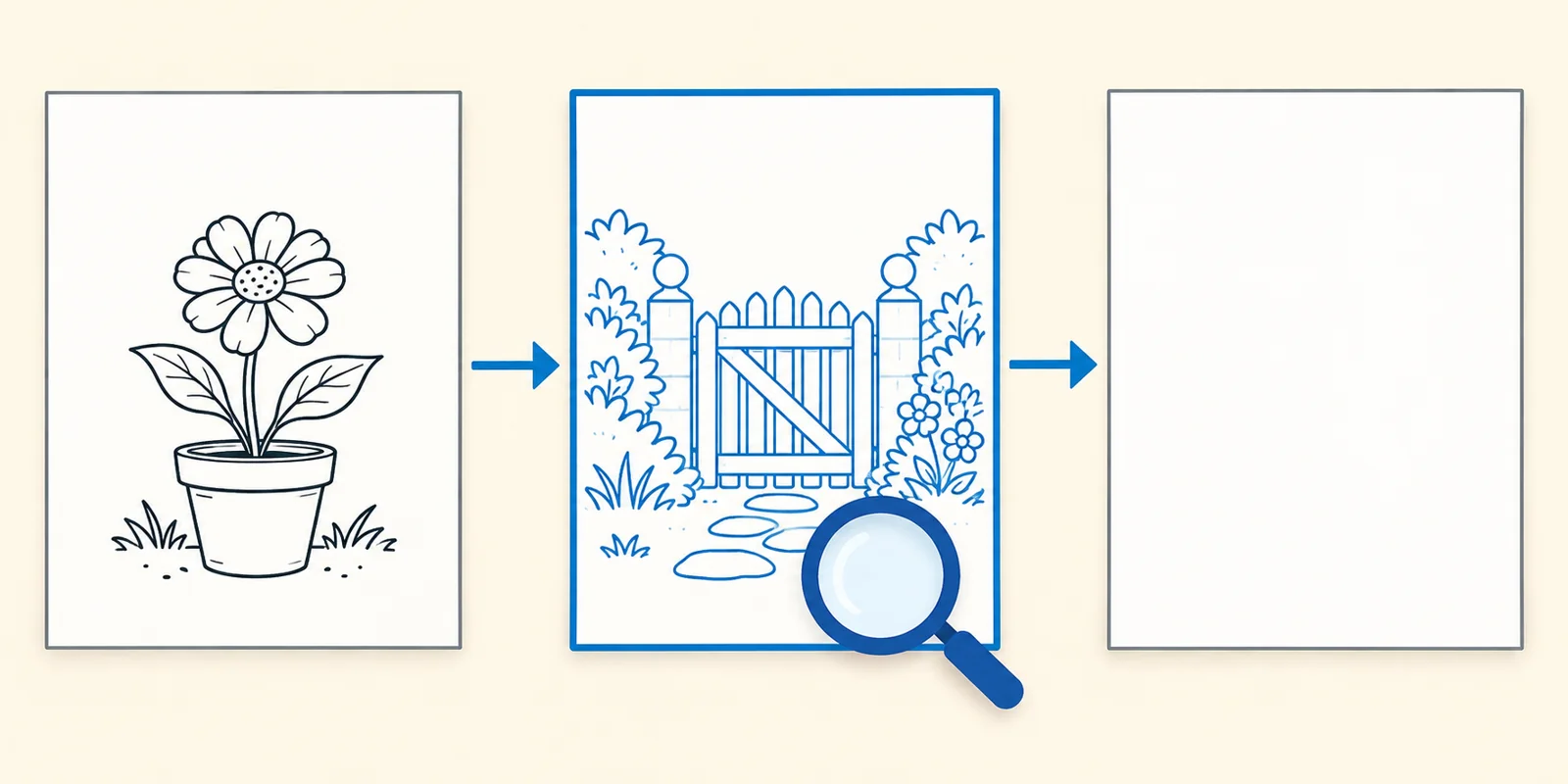
AI-generated conceptual diagram. Review the selected page and its neighbors; the blank sheet is an example, not a required page order.
If you are updating a manuscript on KDP, follow the manuscript update instructions. After uploading the revised interior, open Print Previewer and check the replacement and its neighbors again.
Keep digital review and physical review distinct
A PDF review can confirm that the expected revision is present. It does not show how your particular copy feels on paper or how a chosen coloring medium behaves.
KDP describes proof copies as test copies for review before publication. Its Proof and Author Copies guidance also says author copies do not include unpublished draft changes made on KDP. Do not assume an author copy verifies a replacement that is still a draft.
If you choose to order a copy, follow the current KDP process and keep a record of the version being reviewed. Ordering and shipping have costs; they are separate from the no-cost file checks described here. A printed copy of an earlier revision cannot approve a later replacement.
Where CBE fits—and where your decision still matters
We are the CBE Team, so this is an owned-product recommendation. Coloring Book Engine describes a connected planning, artwork, book-assembly, and export workflow, including an option to bring your own artwork. That makes it relevant when your problem is moving reviewed pages into a complete book rather than generating another standalone image.
This page record is a workflow you can maintain alongside your chosen tools; it is not a claim that CBE automatically creates this exact revision ledger. We have not run a product demonstration for this article or measured a time saving.
If you already have the revised PDF, start with our KDP coloring book PDF preflight checker to check page dimensions. Use your review record to confirm that the right artwork is in the right slot; a structural check cannot do that for you.
The useful finish line is simple: identify the page, describe the defect, preserve the prior version, make a bounded change, and inspect the actual export. Stop when you can name both the revision you approved and the book file that contains it.
Sources
- Amazon KDP: Paperback Submission Guidelines, reviewed November 18, 2026.
- Amazon KDP: Proof and Author Copies, reviewed November 18, 2026.
- Amazon KDP: Update Your Manuscript and Adobe Acrobat: Replace Pages in PDFs, reviewed November 18, 2026.
- Coloring Book Engine: official product description, reviewed November 16, 2026. Public descriptions are not hands-on verification.