Low-Quality Artwork? 5 Ways to Fix It Fast
Low-Quality Artwork? 5 Ways to Fix It Fast
Low-quality artwork can ruin your publishing projects. Blurry images, pixelation, and poor resolution don't just look unprofessional - they can lead to customer dissatisfaction and hurt your reputation. But you don't need to start over. Here are 5 quick fixes to turn low-quality artwork into professional, print-ready files:
- AI Upscaling: Use tools like Coloring Book Engine to boost resolution to 300 DPI or higher. This is critical for platforms like KDP, where clarity and detail matter.
- Batch Processing: Speed up your workflow by processing up to 50 images at once, saving time on large projects.
- Palette Matching & Line Refinement: Fix inconsistent colors and jagged lines for a polished finish.
- Local GPU Processing: Keep your files secure and process images faster directly on your computer.
- KDP Compliance: Ensure your artwork meets technical requirements like resolution, bleed, and file format to avoid rejections.
These methods are simple, fast, and cost-effective, making them perfect for creators looking to improve their artwork without hiring outside help. Keep reading for step-by-step instructions and practical tips.
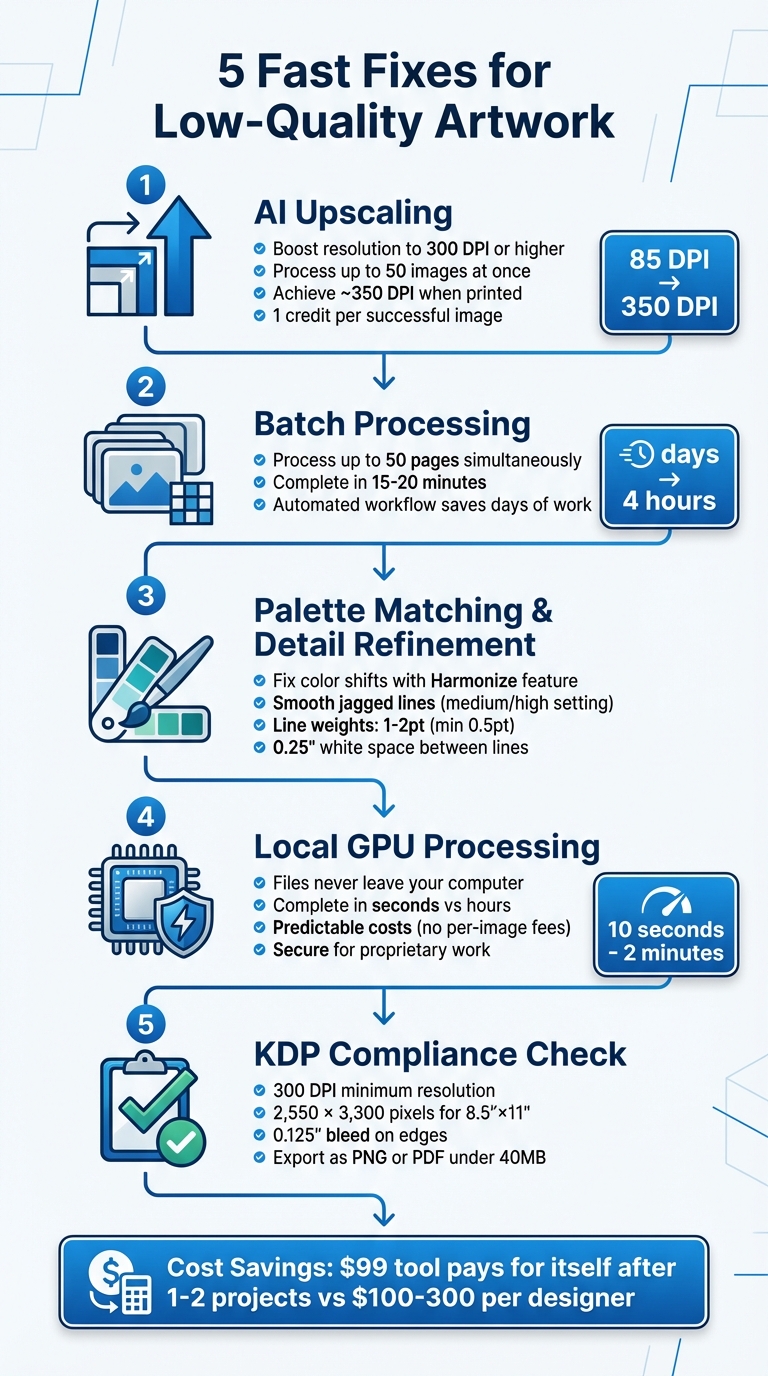
5 Fast Fixes to Transform Low-Quality Artwork into Print-Ready Files
Unbelievable Trick to Turn Low-Quality Images Into Professional Vector Art With Photoshop!
Fix 1: Upscale Artwork Using AI Tools in Coloring Book Engine
When your artwork falls short of the 300 DPI standard, AI upscaling can step in to save the day without requiring you to redraw anything. The Coloring Book Engine uses AI to instantly double your artwork's resolution, turning blurry images into sharp, print-ready files. This is especially important for KDP publishing, as images with a resolution of 1024×1024 only achieve about 85 DPI, which is far below the required standard. By using this method, your images can meet professional printing standards - an essential factor for successful KDP projects.
The engine also features BYOK integration, allowing you to manage AI costs by using your own API keys instead of relying on unpredictable platform credit systems. Paired with local GPU processing, your files remain securely on your computer, safeguarding your proprietary artwork.
"I kept hearing 'the images look great on my screen but blurry when I print them.' I wanted to solve this printing problem once and for all".
How to Upscale Artwork Step-by-Step
The upscaling process in Coloring Book Engine is built for simplicity and speed. First, select the coloring pages you want to enhance - you can process up to 50 images in a single batch. Then, click the upscale icon, and the AI will reconstruct lines and details in real time. Most batches are completed within minutes, and the upscaled images achieve approximately 350 DPI when printed at standard sizes.
Once the process is finished, you can download your high-resolution images individually or as a bulk ZIP file, ready to upload to KDP. Before finalizing, inspect the images at 100% zoom to check for any artifacts. Save your upscaled line art as PNG for lossless quality or as a high-quality PDF for optimal print results. The system charges 1 credit per successful image, and any failed upscales are automatically refunded.
Now, let’s explore how local GPU processing takes this workflow to the next level.
Why Local GPU Processing Matters
Local GPU acceleration turns the upscaling process into a fast and private operation that runs entirely on your hardware. Unlike traditional methods that stretch pixels, your GPU reconstructs them, completing tasks in seconds instead of hours.
"Your files never leave your computer with local rendering. Perfect for pros handling confidential or proprietary material".
This method also ensures predictable costs by eliminating pay-per-image cloud credit systems. Once you have the software, you can upscale as many images as you need without incurring additional fees. For KDP creators, this is a game-changer, as AI-generated images often require a 3× to 4× upscale to reach professional print quality. For example, an 8.5"×11" coloring book interior needs 2,550 × 3,300 pixels at 300 DPI, while most AI tools only produce outputs of 1024×1024 pixels. With local GPU processing, achieving these standards becomes faster, easier, and more secure.
Fix 2: Batch Process Multiple Images to Save Time
When tackling a full coloring book project, processing images one by one can quickly slow you down. Luckily, batch processing simplifies this task and speeds up production. With Coloring Book Engine, you can process up to 50 coloring pages in one go, making it a game-changer for productivity.
The process is simple: select the coloring pages you want to upscale from your dashboard, click the upscale icon, and let the AI handle the rest in real time. Most batches finish in just 15–20 minutes, and you’re only charged 1 credit per successful image. If an upscale fails, there’s no charge.
"After implementing batch processing for our online catalog, what used to take our team three days now takes four hours. The time savings alone covered the cost of our subscription within the first month." - Marco Sanchez, E-commerce Director
Set Up Automated Batch Upscaling Workflows
Before diving into batch processing, it’s important to organize your files. Group similar images - like keeping line art separate from colored illustrations - to ensure consistent results. Start with a small test batch and inspect the results at 100% zoom to confirm the quality meets your standards.
Once you’re satisfied with the settings, upload entire folders to process all the images at once. If you’re creating standard KDP letter-size books, set your aspect ratio to 8.5:11 before starting. Also, keep your browser window active while the batch processes, as inactive tabs can slow things down.
Export KDPReady Files in Bulk
When the batch processing is done, you can download all the enhanced images as a ZIP file. Export them as high-resolution PNGs to preserve lossless quality. These upscaled files are formatted to meet professional KDP requirements.
To keep everything organized, name your files systematically (e.g., 01_image.png, 02_image.png) so they stay in order during your KDP import. Before finalizing your KDP interior PDF, review a few samples to catch any potential quality issues early.
This batch processing feature is included with every Coloring Book Engine license, offering advanced capabilities without requiring additional subscription fees.
sbb-itb-c02bfb4
Fix 3: Improve Artwork with Palette Matching and Detail Refinement
When working on a coloring book project, even minor issues like inconsistent colors or rough line work can stand out and compromise the overall quality. After upscaling, you might notice mismatched tones or jagged edges that won’t translate well to print. Thankfully, Coloring Book Engine offers tools like palette matching and detail refinement to help you achieve polished, professional results.
Fix Color Shifts and Match Palettes
Color shifts between pages can be frustrating, but the Harmonize feature can automatically unify the color scheme across your images. To fine-tune further, use the Match Color command or the Recolor Artwork tool to adjust tones and maintain consistency. These tools are especially useful for avoiding unwanted color variations, such as a sudden green or pink cast, or inconsistent brightness levels.
"Color management makes that difference consistent and predictable. Your prints won't be green sometimes and pink other times, or unpredictably dark or light."
For best results, always inspect your refined artwork at 100% magnification before exporting it. This ensures that what you see on screen matches the final print quality.
After aligning your palettes, the next step is to refine the line art to ensure every detail is crisp and ready for printing.
Clean Up Line Art for Print-Ready Results
To clean up your line work, activate the Remove Speckles option and set Line Smoothing to medium or high in the AI Vectorizer. This reduces noise and smooths out uneven edges. Simplify vector paths by rounding corners and eliminating unnecessary internal details. Aim for line weights between 1pt and 2pt (with a minimum of 0.5pt) and leave at least 0.25" of white space between lines. Additionally, make sure endpoints are properly joined and remove any duplicate lines. Before exporting, set the artwork to Pure Black and ensure a resolution of 300 DPI for optimal print clarity.
Fix 4: Preview and Export Artwork for KDP Compliance
Once you've finished refining your artwork, it's time to ensure it meets the technical requirements for Kindle Direct Publishing (KDP). Even minor issues, like incorrect resolution or bleed, can lead to rejection. This step is crucial to confirm your artwork is ready for seamless publication.
Organize Projects with the Tabbed Workspace
The Coloring Book Engine's tabbed workspace makes it easy to manage multiple pages at once. This feature is especially helpful for maintaining a consistent style across your project. Use the Bulk Generation Tab to process up to 50 pages simultaneously, saving time and keeping your workflow efficient.
Check High-Resolution Outputs for KDP
Before exporting, double-check that your images meet KDP's specifications. Every image must have a resolution of at least 300 DPI - anything below 200 DPI risks rejection. For an 8.5″×11″ page, this means your artwork should be sized at 2,550×3,300 pixels. Additionally, include a 0.125″ bleed on the top, bottom, and outer edges to avoid unwanted white borders, and ensure all vital design elements are at least 0.125″ inside the trim lines.
Here's a quick way to verify DPI: divide the pixel dimensions by the print size in inches. Also, switch your workspace to High Quality Display mode to view the actual resolution rather than a performance-optimized preview. Before exporting, flatten all layers and remove any transparencies to prevent potential printing issues. Export your files as 300 DPI PNG images for optimal quality, and aim to keep your final PDF under 40MB for faster processing, even though KDP allows files up to 650MB.
For coloring books, remember to place artwork on right-hand (odd-numbered) pages with blank pages on the reverse side. This prevents ink bleed-through and aligns with KDP's letter-size preset of 8.5″×11″. By following these steps, your project will be fully prepared for KDP's publishing standards.
Conclusion: Get Professional Results with These 5 Fast Fixes
By combining cutting-edge AI tools with efficient workflows, you can quickly elevate your artwork to a professional standard. These five solutions provide a streamlined process for transforming low-quality designs into print-ready assets, saving both time and effort. With local GPU processing, images can be enhanced in as little as 10 seconds to 2 minutes.
The financial benefits are clear. Investing $99 in professional upscaling tools can pay off after just one or two projects, making it a cost-effective alternative to hiring designers who typically charge between $100 and $300 per cover. Using Coloring Book Engine's BYOK model, you stay in control of your AI expenses, workflow, and data, ensuring efficiency across every stage of production.
Consistency is key when preparing files for platforms like KDP. Applying uniform settings ensures your pages meet the required 300 DPI and dimensions (2,550×3,300 pixels for 8.5″×11″ interiors). Features like a tabbed workspace keep your process organized, while automated exports guarantee that every file aligns with technical standards.
"AI upscaling and enhancement tools have eliminated the resolution barrier for KDP publishing." – KDPEasy
FAQs
How can AI upscaling enhance low-resolution artwork for KDP publishing?
AI upscaling relies on advanced deep-learning techniques to improve low-resolution artwork by boosting pixel density, refining edges, and rebuilding intricate details. This ensures your images meet KDP's 300 DPI standard and minimum size requirements, producing sharp, print-ready pages.
By using AI upscaling, you can effortlessly turn lackluster visuals into polished, professional-quality artwork. It's an invaluable resource for creators working on projects like coloring books or other self-published works.
What are the advantages of using a local GPU for enhancing artwork quality?
Using a local GPU to refine your artwork comes with several clear advantages. First, because everything happens directly on your computer, the process is significantly faster. Large files can be processed in just seconds or minutes, skipping the delays that come with uploading to a cloud service. Plus, keeping everything on your device means your work stays private - a crucial factor for unpublished or copyrighted projects.
Another perk? It’s budget-friendly. You won’t need to pay for cloud-based credits or per-render fees. On top of that, local GPUs let you process multiple images at once, making your workflow more efficient. By offloading complex calculations to your GPU, you can effortlessly upscale your designs, achieving higher resolution, sharper details, and an overall boost in quality - all without compromising security or performance.
How can I make sure my artwork meets KDP's quality standards?
To make sure your artwork meets KDP's quality standards, here are some essential steps to follow:
- Set the resolution to 300 DPI or higher. This ensures your artwork meets KDP's print-quality requirements, resulting in crisp, clear images.
- Match your dimensions to the trim size of your project. For instance, if you're designing a 6" x 9" cover, export it at 2,550 x 4,200 pixels (including bleed). Larger dimensions help maintain sharpness.
- Include bleed for print covers. Extend your design 0.125 inches beyond the trim edges. When exporting, crop back to the exact trim size for a polished result.
- Save in the right file format. For print covers, use high-quality PDFs (PDF/X-1a) or JPEGs with maximum quality in sRGB color mode. For eBook covers, JPEG or PNG files work best.
Before uploading, use KDP's previewer to carefully review your file for any issues with size, resolution, or bleed. If your image resolution is too low, consider using an AI upscaling tool to enhance it without losing detail. By following these steps, your artwork will meet KDP's standards and look polished, whether in print or digital format.